
Large Datasets
You can split up very large datasets into manageable chunks (called submodels), running the software on each chunk, and then producing merged DEMs, orthophotos and point clouds. The process is referred to as “split-merge”.
Why might you use the split-merge pipeline? If you have a very large number of images in your dataset, split-merge will help make the processing more manageable on a large machine (it will require less memory). If you have many machines all connected to the same network you can also process the submodels in parallel, thus allowing for horizontal scaling and processing thousands of images more quickly.
Split-merge works in WebODM out of the box as long as the processing nodes support split-merge, by enabling the --split option when creating a new task.
Local Split-Merge
Section titled “Local Split-Merge”Splitting a dataset into more manageable submodels and sequentially processing all submodels on the same machine is easy! Just use --split and --split-overlap to decide the average number of images per submodel and the overlap (in meters) between submodels respectively:
docker run -ti --rm -v /my/project:/datasets/code webodm/odm --project-path /datasets --split 400 --split-overlap 100If you already know how you want to split the dataset, you can provide that information and it will be used instead of the clustering algorithm.
The grouping can be provided by adding a file named image_groups.txt in the main dataset folder. The file should have one line per image. Each line should have two words: first the name of the image and second the name of the group it belongs to. For example:
01.jpg A02.jpg A03.jpg B04.jpg B05.jpg Cwill create 3 submodels. Make sure to pass --split-overlap 0 if you manually provide a image_groups.txt file.
Distributed Split-Merge
Section titled “Distributed Split-Merge”WebODM can also automatically distribute the processing of each submodel to multiple machines via NodeODM nodes, orchestrated via ClusterODM.
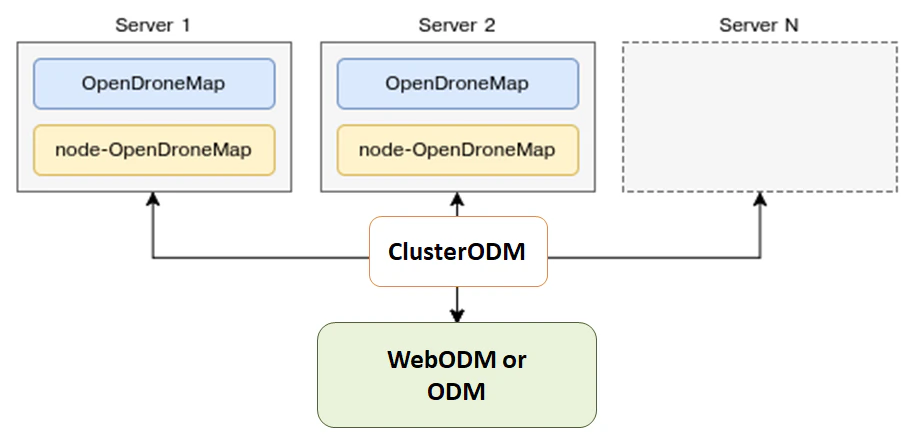
Getting Started with Distributed Split-Merge
Section titled “Getting Started with Distributed Split-Merge”The first step is start ClusterODM:
docker run -ti -p 3001:3000 -p 8080:8080 webodm/clusterodmThen on each machine you want to use for processing, launch a NodeODM instance via:
docker run -ti -p 3000:3000 webodm/nodeodmConnect via telnet to ClusterODM and add the IP addresses/port of the machines running NodeODM:
$ telnet <cluster-odm-ip> 8080Connected to <cluster-odm-ip>.Escape character is '^]'.[...]# node add <node-odm-ip-1> 3000# node add <node-odm-ip-2> 3000[...]# node list1) <node-odm-ip-1>:3000 [online] [0/2] <version 1.5.1>2) <node-odm-ip-2>:3000 [online] [0/2] <version 1.5.1>At this point, simply use the --sm-cluster option to enable distributed split-merge.
Understanding the Cluster
Section titled “Understanding the Cluster”When connected via telnet, it is possible to interrogate what is happening on the cluster. For example, we can use the command HELP to find out available commands:
# HELPNODE ADD <hostname> <port> [token] - Add new nodeNODE DEL <node number> - Remove a nodeNODE INFO <node number> - View node infoNODE LIST - List nodesNODE LOCK <node number> - Stop forwarding tasks to this nodeNODE UNLOCK <node number> - Resume forwarding tasks to this nodeNODE UPDATE - Update all nodes infoNODE BEST <number of images> - Show best node for the number of imagesROUTE INFO <taskId> - Find route information for taskROUTE LIST [node number] - List routesTASK LIST [node number] - List tasksTASK INFO <taskId> - View task infoTASK OUTPUT <taskId> [lines] - View task outputTASK CANCEL <taskId> - Cancel taskTASK REMOVE <taskId> - Remove taskASR VIEWCMD <number of images> - View command used to create a machine!! - Repeat last commandIf the NodeODM instance wasn’t active when ClusterODM started, you can perform a NODE UPDATE:
# NODE UPDATEOK# NODE LIST1) localhost:3000 [online] [0/2] <version 1.5.3> [L]Accessing the Logs
Section titled “Accessing the Logs”While a process is running, it is also possible to list the tasks and view the task output:
# TASK LIST# TASK OUTPUT <taskId> [lines]Autoscaling ClusterODM
Section titled “Autoscaling ClusterODM”ClusterODM also includes the option to autoscale on multiple platforms, including Amazon and Digital Ocean. This allows users to reduce costs associated with always-on instances as well as being able to scale processing based on demand.
To setup autoscaling you must:
- Have a functioning version of NodeJS installed and then install ClusterODM:
git clone https://github.com/WebODM/ClusterODMcd ClusterODMnpm install- Make sure docker-machine is installed.
- Setup a S3-compatible bucket for storing results.
- Create a configuration file for DigitalOcean or Amazon Web Services.
You can then launch ClusterODM with:
node index.js --asr configuration.jsonYou should see something similar to the following messages in the console:
info: ASR: DigitalOceanAsrProviderinfo: Can write to S3info: Found docker-machine executableYou should always have at least one static NodeODM node attached to ClusterODM, even if you plan to use the autoscaler for all processing. If you setup auto scaling, you can’t have zero nodes and rely 100% on the autoscaler. You need to attach a NodeODM node to act as the “reference node” otherwise ClusterODM will not know how to handle certain requests. For this purpose, you should add a “dummy” NodeODM node and lock it:
telnet localhost 8080> NODE ADD localhost 3001> NODE LOCK 1> NODE LIST1) localhost:3001 [online] [0/2] <version 1.5.1> [L]This way all tasks will be automatically forwarded to the autoscaler.
Limitations
Section titled “Limitations”The 3D textured meshes are currently not being merged as part of the workflow (only point clouds, DEMs and orthophotos are).
GCPs are fully supported, however, there needs to be at least 3 GCP points on each submodel for the georeferencing to take place. If a submodel has fewer than 3 GCPs, a combination of the remaining GCPs + EXIF data will be used instead (which is going to be less accurate). We recommend using the image_groups.txt file to accurately control the submodel split when using GCPs.
Estimating Data Collection Effort
Section titled “Estimating Data Collection Effort”Larger datasets can be collected with specialized fixed wing UAVs, vertical takeoff and landing (VTOL) UAVs, and collected quite efficiently under certain conditions. In many instances, however, we are constrained to doing data collection efforts with commodity quadcopters. In these cases, a common question is the data collection time under ideal conditions with commodity equipment.
Data Collection Effort, Full 3D
Section titled “Data Collection Effort, Full 3D”For best in class results with full 3D reconstruction and 5cm resolution, it is feasible to collect 1–2 km² per person, per day. This requires the following set of flights:
- 60% overlap nadir flight
- 70-80% overlap 45-degree gimbal angle cross-grid
The 45-degree cross-grid flight provides the basis for a fully tied together model, while the nadir flights provide the necessary texture for orthophoto texturing. The lower overlap meets the minimum requirement for orthophoto products as facilitated by feature matching from the much higher overlap cross-grid.
Data Collection Effort, 2D and 2.5D Products
Section titled “Data Collection Effort, 2D and 2.5D Products”For best in class results 2D and 2.5D products and 5cm resolution, it is feasible to collect 2–4 km² per person, per day. This requires the following set of flights:
- 70-80% overlap slightly off-nadir (5-10 degree off nadir)
For more complex buildings and vegetation, aim for closer to 80% overlap. If buildings, vegetation, and terrain changes are not complex, it’s quite feasible to use closer to 70% overlap.
(credit: derived from ongoing conversations with Ivan Gayton, Humanitarian OpenStreetMap Team)
Acknowledgments
Section titled “Acknowledgments”Huge props to Pau, Yann and the folks at Mapillary for their amazing contributions to OpenSfM, which is a key component of the split-merge pipeline.